
How to set up abandoned cart text messages in CartBoss
CartBoss sends abandoned cart text messages to shoppers who leave a phone number but don't buy; you manage them under Messaging → Abandoned cart. Texts are paid from your balance; prices are on the pricing page.
Before you begin
- Connect your store. On the Sites page it must show Active.
- Have money on your balance. Without it, CartBoss does not pick up new carts.
Open your abandoned cart texts
- In your CartBoss dashboard, click Abandoned cart in the left menu, under Messaging.
- You see every abandoned cart message, sorted by when it sends: messages that are on come first, shortest delay first.
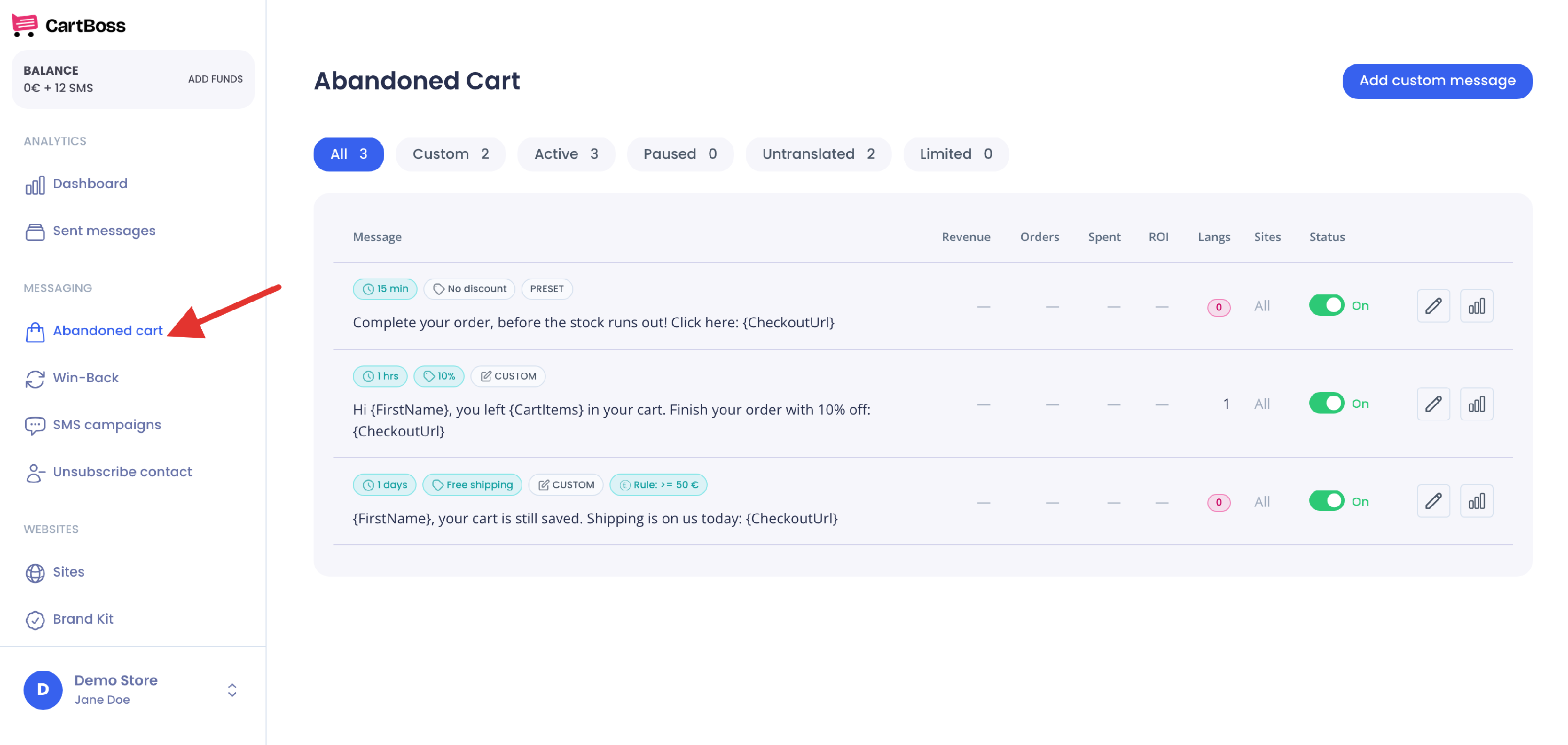
Together, the messages that are on form a series. A shopper who abandons a cart gets each of them in turn, after each message's own delay.
Preset and custom messages
- PRESET: written and translated by CartBoss. You can't change the text or its translations. You can still change Delay, Discount, Website targeting, Order value limit and Smart sending, and switch it on or off. You can't delete a preset.
- CUSTOM: a message you wrote. You can change everything and delete it.
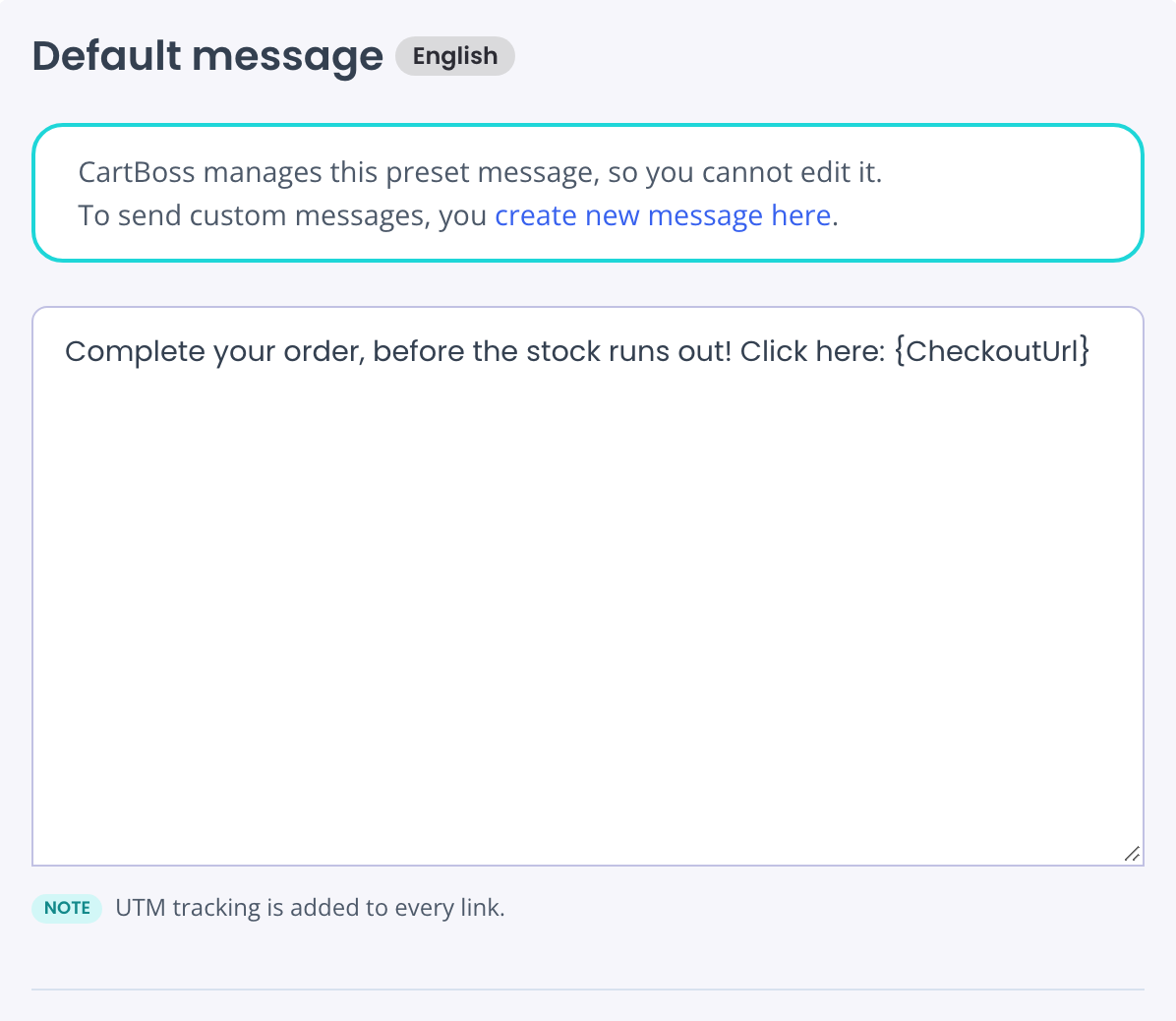
Want your own wording? Write a custom message: see How to write your own abandoned cart text.
Read a message row
The chips above each text show its settings at a glance:
- Delay: for example 15 min or 1 days, or Sends instantly.
- Discount: No discount, or the offer, for example 10% or Free shipping. See How to add a discount.
- PRESET or CUSTOM.
- Rule: >= 50 € or Rule: < 50 €: the message sends only for carts at or above, or below, that value.
- Rule: 7 days (for example): the message skips shoppers who got a text from you in the last 7 days.
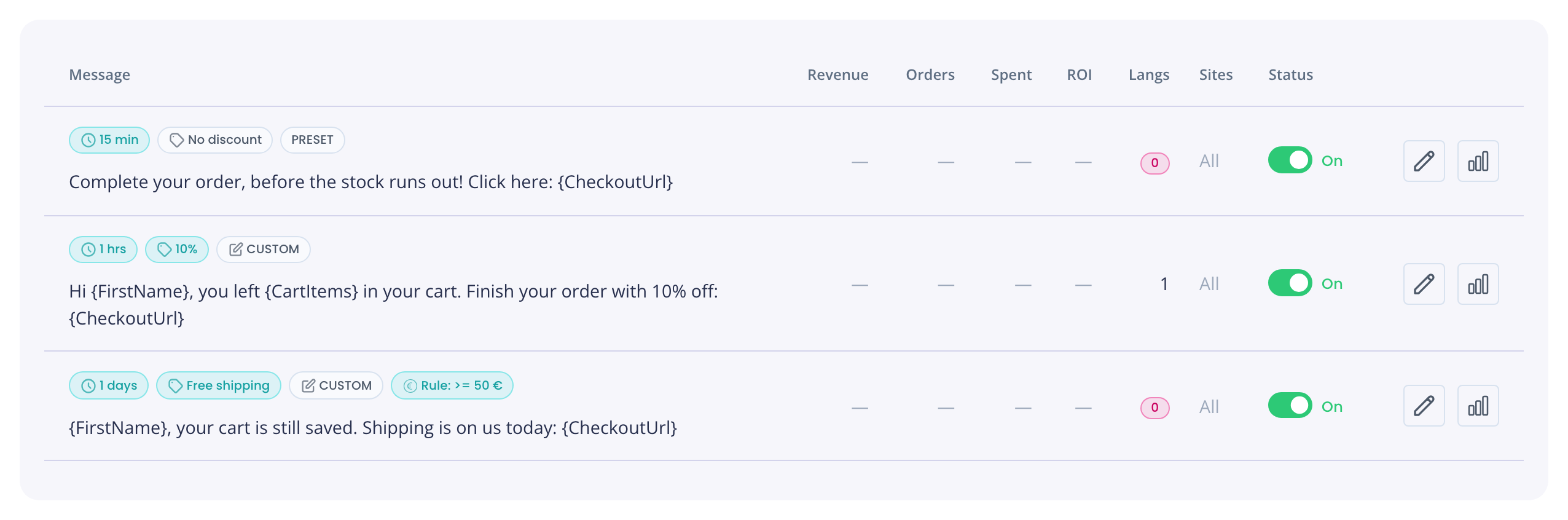
The columns:
- Revenue, Orders, Spent, ROI: results of this message. They show "—" until it has sent.
- Langs: the number of translations. A red 0 means everyone gets the default message. See How to send texts in your customer's language.
- Sites: All (every store), +1 (only selected stores) or -1 (all stores except selected ones). See How to send different texts for each store.
- Status: the On/Off switch.
Filter the list
Click a filter above the list:
- All, Custom, Active (on), Paused (off).
- Untranslated: messages with no translations.
- Limited: messages that send only from selected stores.
Turn a message on or off
- Find the message in the list.
- Click the switch in the Status column. On means it sends. Off means it is paused.
When you switch a message off, its texts that are still waiting are cancelled. Switching it on again does not bring them back; it applies to new carts.
Add your own message
- Click Add custom message at the top right.
- Write and save the message. Steps: How to write your own abandoned cart text.
- Back in the list, switch the new message On. New messages are saved Off.
When does CartBoss send an abandoned cart text?
- The series starts when CartBoss receives an abandoned cart with a valid phone number, from a shopper who may receive texts under your store's consent setting.
- Each message waits its delay, counted from when the cart was abandoned. The messages that are on at that moment make up the series.
- One series per shopper per store per 24 hours. If the same shopper abandons another cart in the same store within 24 hours, no new series starts.
- At most 4 texts per shopper in 24 hours, across all your stores. Extra texts are not dropped: they wait until the shopper is under the limit again.
- A purchase cancels the texts not sent yet. Once the shopper buys, they get no more abandoned cart texts for that series.
- Quiet hours hold texts overnight and send them in the morning. See How to set quiet hours.
- Revenue is credited to a text when the shopper buys in the same store within 24 hours after it. The shopper does not need to click the link.
Questions
Can I change the text of a preset message?
No. Add a custom message with your own wording, switch it on, and switch the preset off.
How long can a text be?
One SMS part holds 160 plain characters, or 70 with special characters. Longer texts are sent in several parts. See How to keep a CartBoss text to one SMS part.
Why didn't a shopper get a text?
See How to find out why a shopper didn't get a CartBoss text.
Can I show the shopper's name or cart in the text?
Yes, with shortcodes such as {FirstName} and {CartItems}. See How to personalize CartBoss texts with shortcodes.