
How to add a discount to your abandoned cart texts in CartBoss
To add an abandoned cart discount in CartBoss, set Discount to Enable special offer in the message and pick a type; the link applies the code to the cart. Shoppers never type a code: CartBoss puts the discount on every link in the text.
Before you begin
- The message needs a link: {CheckoutUrl} in an abandoned cart text, or a web address that starts with http:// or https://. The discount code is created at your store when the shopper opens the link.
- For your own code (a free gift, buy one get one), see How to send your own coupon code in a CartBoss text.
Add a discount to a message
- Click Abandoned cart in the left menu, under Messaging.
- Click the pencil next to a message, or Add custom message. Preset messages can carry a discount too.
- Under Discount, choose Enable special offer (recommended).
- Pick a Discount type (see below) and fill in the value.
- Click Save.

The message row in the list now shows the offer, for example 20%, instead of No discount.
Which discount type to choose
- Percentage: enter Percentage off, from 1 to 100. Each shopper gets a unique code that works once.
- Fixed amount: enter Amount off, from 1 to 10,000. Each shopper gets a unique code that works once. The amount is converted to the shopper's currency.
- Free shipping: free shipping is applied to the shopper's cart.
- Custom coupon: your own code, which you first create in Shopify or WooCommerce. Every shopper gets the same code. See How to send your own coupon code.
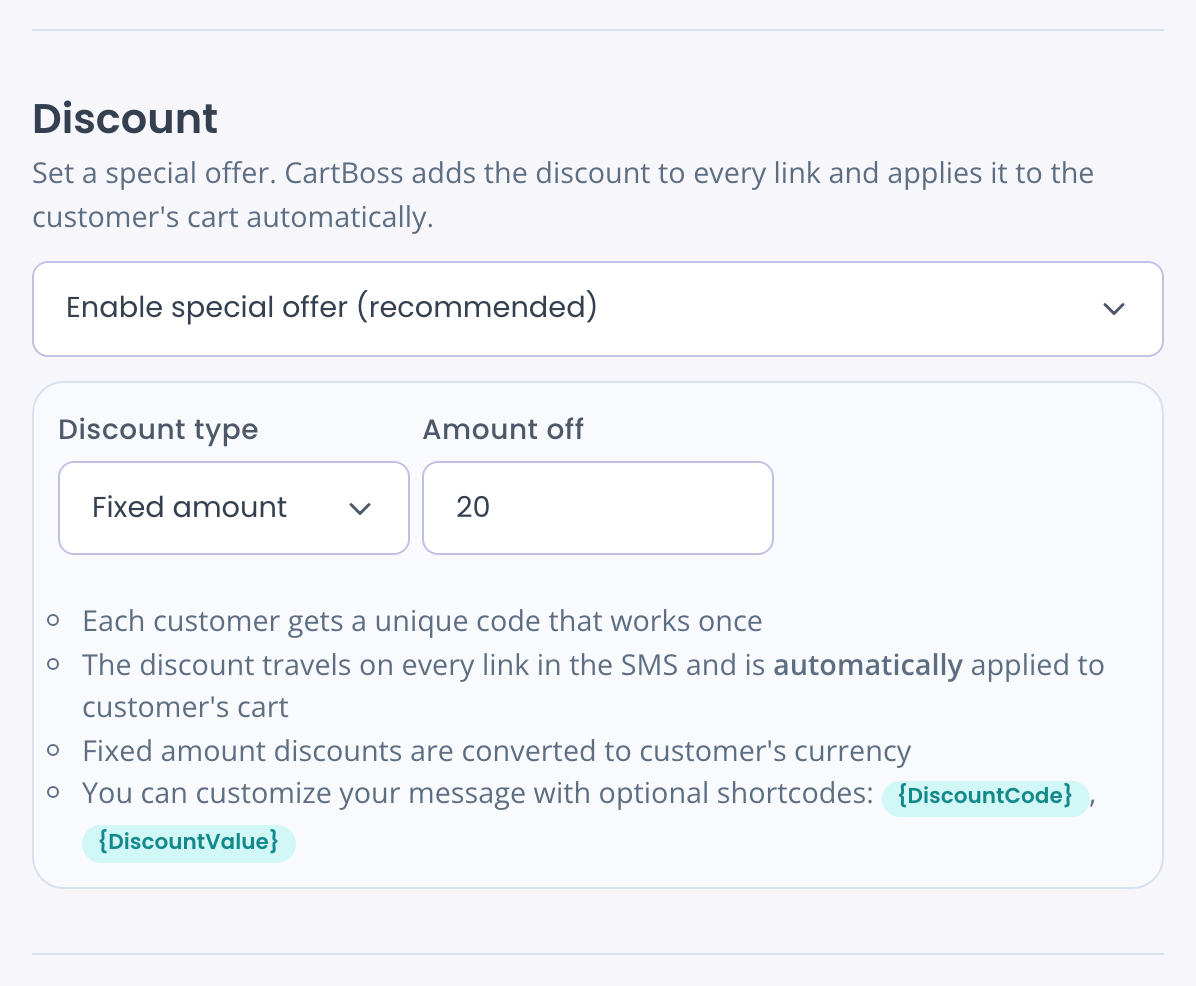
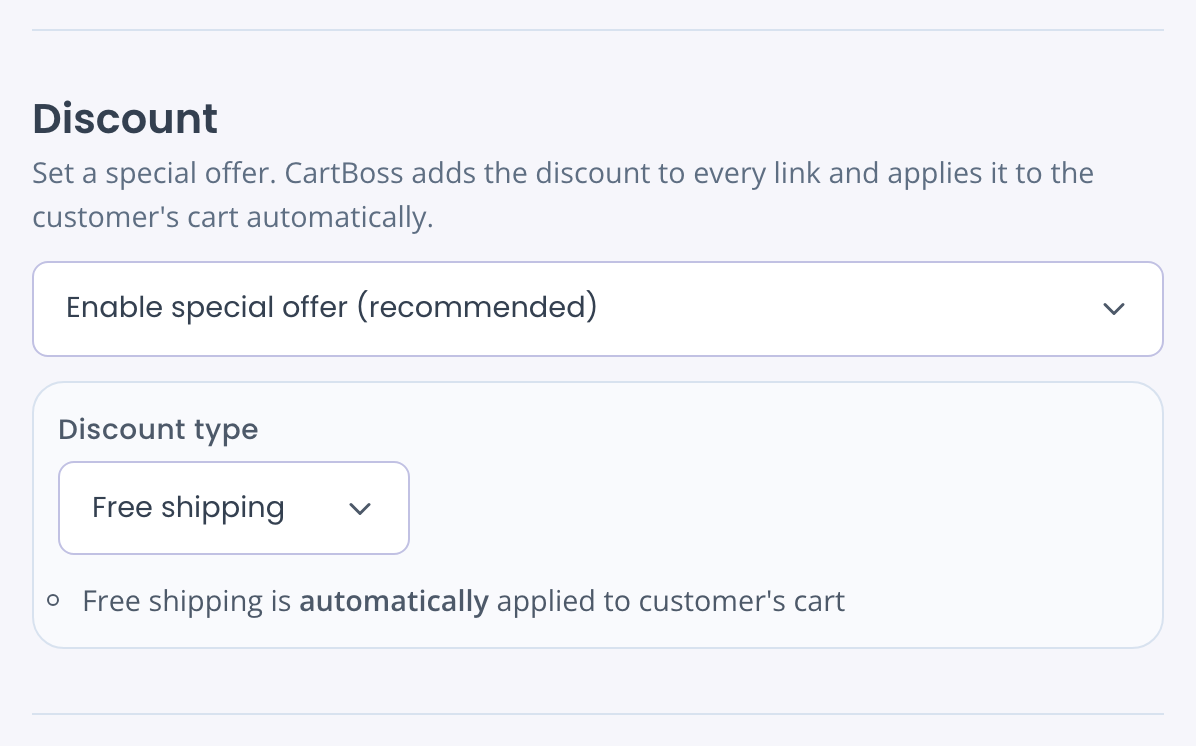
For Percentage, Fixed amount and Free shipping you don't create anything in your store. CartBoss creates the code.
How the shopper gets the discount
- The shopper opens the link in the text.
- The code is created at your store and applied to their cart.
- They see the lower price at checkout, with no code to type.
Want the code or the value in the text? Use these shortcodes:
- {DiscountCode}: the shopper's code.
- {DiscountValue}: the discount, for example "20%" with a Percentage discount. With other types, write the offer in your own words.
Example: "Hi {FirstName}, here is {DiscountValue} off your cart: {CheckoutUrl}". All shortcodes: How to personalize CartBoss texts with shortcodes.
Give a bigger discount later in the series
Each message has its own Discount. A common setup: the first text has no discount, a later text offers one. Set the discount on each message separately.
Questions
I get the error: Turn off the discount or add a link. The discount code is created when the customer opens a link.
The default message has no link. Add {CheckoutUrl}, or set Discount back to No special offer set.
Do translations need the link too?
Yes. The discount travels only on links in the text the shopper actually gets. Put {CheckoutUrl} in every translation. See How to send texts in your customer's language.
Can each store have a different discount?
Yes. Make one custom message per store, each with its own discount and Website targeting. See How to send different texts for each store.
Can a shopper use the code twice?
No. Percentage and Fixed amount codes are unique and work once.