
How to send different texts for each store in CartBoss
To send different texts for each store in CartBoss, set Website targeting on each message to Include selected websites or Exclude selected websites. It works for abandoned cart and Win-Back messages, presets included.
Before you begin
- Add all your stores to CartBoss. See How to add a store and choose its settings in CartBoss.
Choose the stores for a message
- Click Abandoned cart (or Win-Back) in the left menu, under Messaging.
- Click the pencil next to a message, or Add custom message.
- Under Website targeting, choose one:
- Active on all my websites (default): every store sends it, including stores you add later.
- Include selected websites: only the stores you pick send it.
- Exclude selected websites: every store except the ones you pick sends it.
- Click the box under Start typing, or click for complete website list: and pick one or more stores.
- Click Save.
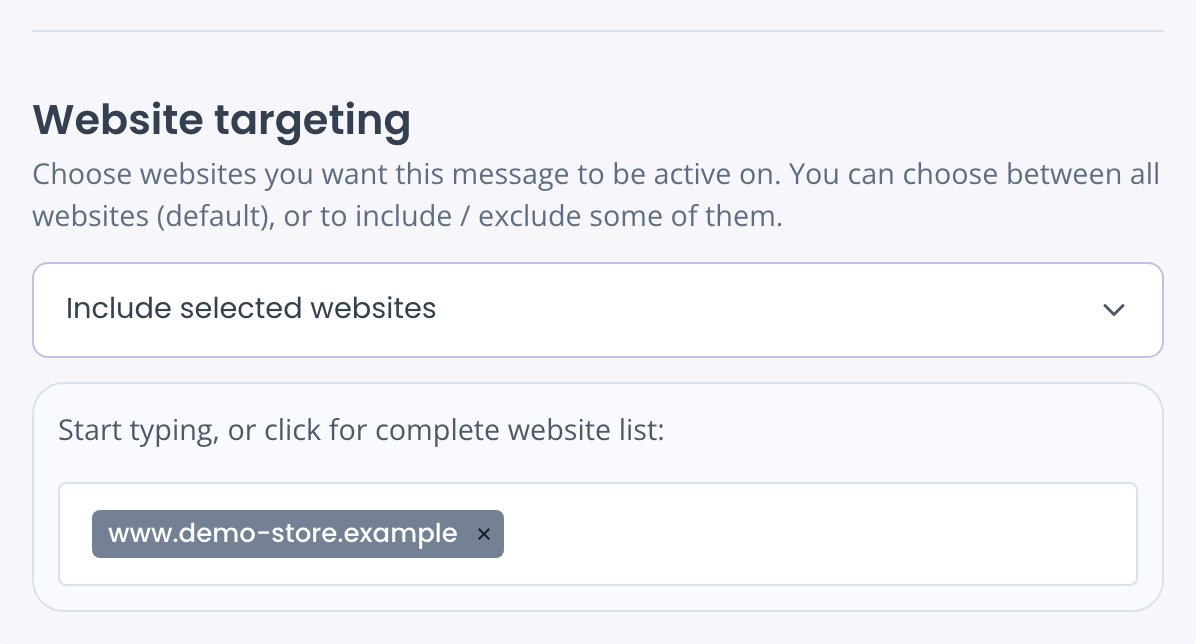
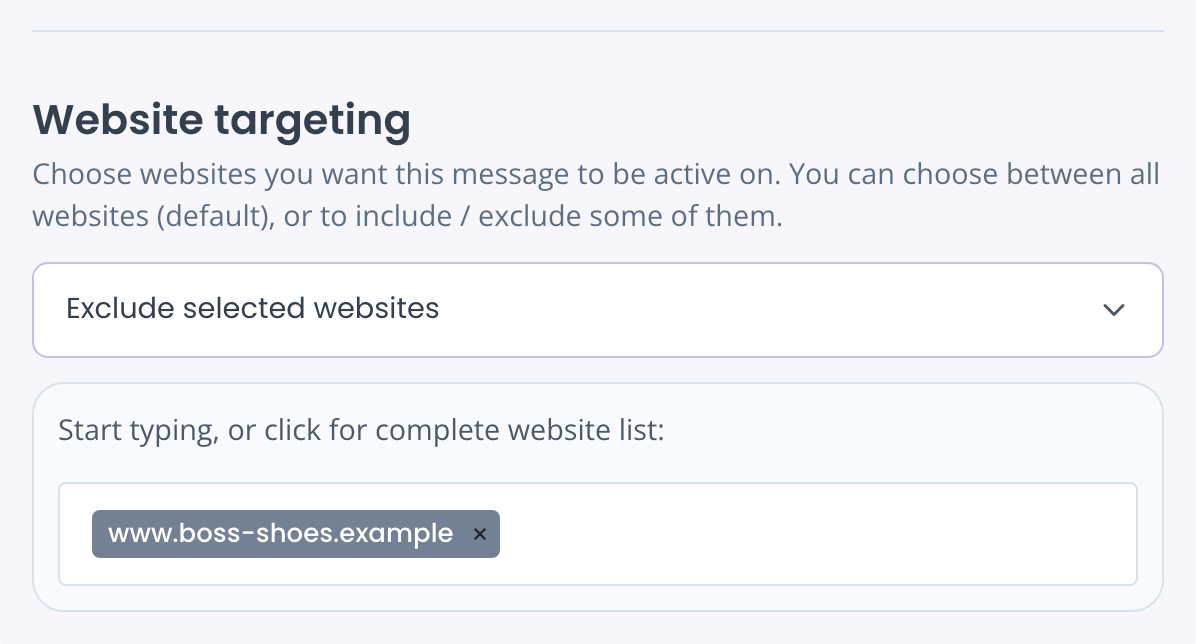
With Include or Exclude you must pick at least one store, or you see "Choose at least 1 website".
Example: a separate series for one store
You add a new store and want it to send its own texts only.
- Create the new store's messages and set each to Include selected websites with the new store. See How to write your own abandoned cart text.
- Open each of your other messages that are set to Active on all my websites (default).
- Set them to Exclude selected websites and pick the new store.
- Save each message.
Skip steps 2 to 4 and shoppers of the new store get both sets of texts.
Give each store its own discount
A message has one discount. For a different offer per store, make one custom message per store, each with its own Discount and Website targeting. To reuse a preset's wording, copy its text into the new message. See How to add a discount.
See which stores a message uses
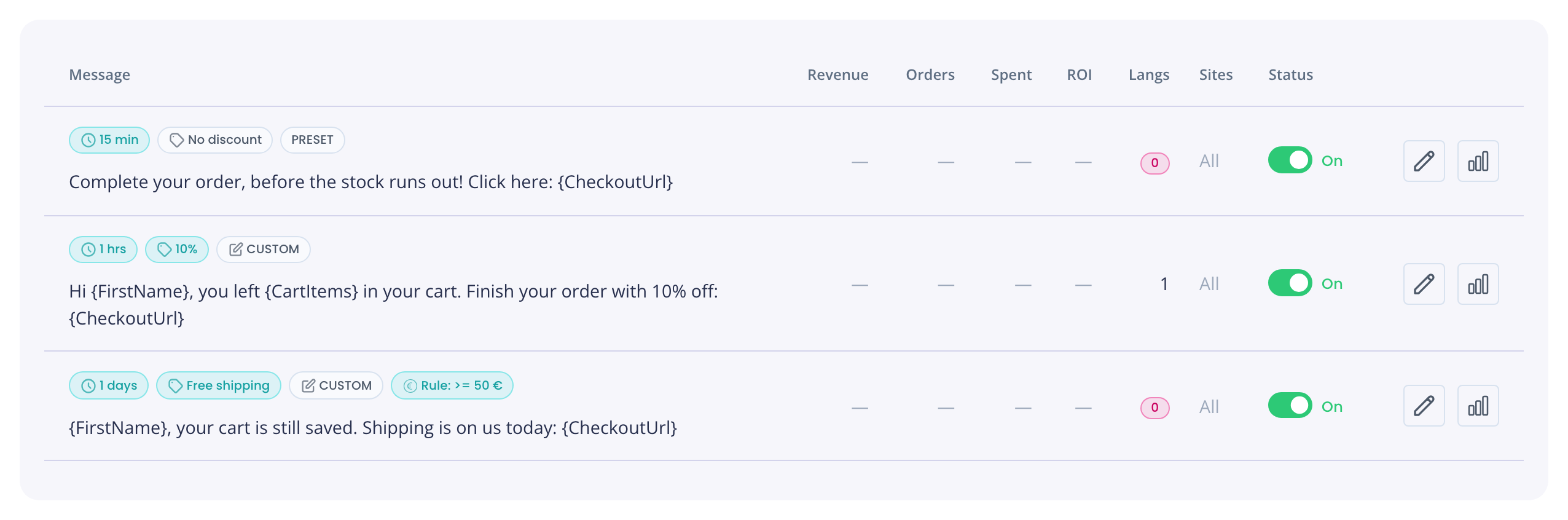
- The Sites column in the message list shows All, +1 (included stores) or -1 (excluded stores). Hover it to see the store names.
- The Limited filter lists the messages that don't send from every store.
Good to know
- CartBoss checks Website targeting when the cart arrives (for Win-Back, when the order is paid). A change applies to new carts and orders, not to texts already waiting.
- A shopper gets at most 4 texts in 24 hours across all your stores. See How to set up abandoned cart text messages.
Questions
I added a new store. Which messages does it send?
Every message set to Active on all my websites (default), and every Exclude message. Include messages skip it until you add it to them.
Can I send texts in a different language per store?
CartBoss picks the language from the shopper's country. See How to send texts in your customer's language. For a fully different text per store, use Website targeting.