
How to send your own coupon code in a CartBoss text
To send a custom discount code in a CartBoss text, create the coupon in your store first, then pick Custom coupon under Discount and type the same code. Use it for any offer your store's coupons support, such as a free gift or buy one, get one free.
Before you begin
- Create the coupon in every store that sends this message. A store without the coupon can't apply it.
- Every shopper gets the same code, so let the coupon be used many times in total.
- For a simple percentage, fixed amount or free shipping, you don't need your own code. See How to add a discount to your abandoned cart texts.
Create the coupon in Shopify
- In your Shopify admin, go to Discounts.
- Create a discount with a discount code, for example FREEGIFT, and set the offer.
- Don't limit the total number of uses, and don't set an end date that comes before your texts go out.
- Save the discount.
Create the coupon in WooCommerce
- In your WordPress admin, go to Marketing → Coupons.
- Click Add coupon and type the code, for example FREEGIFT.
- Set the offer under Coupon data. Leave the usage limit per coupon empty.
- Click Publish.
Add the coupon to your CartBoss text
- Click Abandoned cart (or Win-Back) in the left menu, under Messaging.
- Click the pencil next to a message, or Add custom message.
- Under Discount, choose Enable special offer (recommended).
- Under Discount type, choose Custom coupon.
- In Coupon code, type the code exactly as in your store.
- In the text, tell shoppers what the offer is, and make sure it has a link: {CheckoutUrl} in an abandoned cart text, or {SiteUrl} in a Win-Back text.
- Click Save.
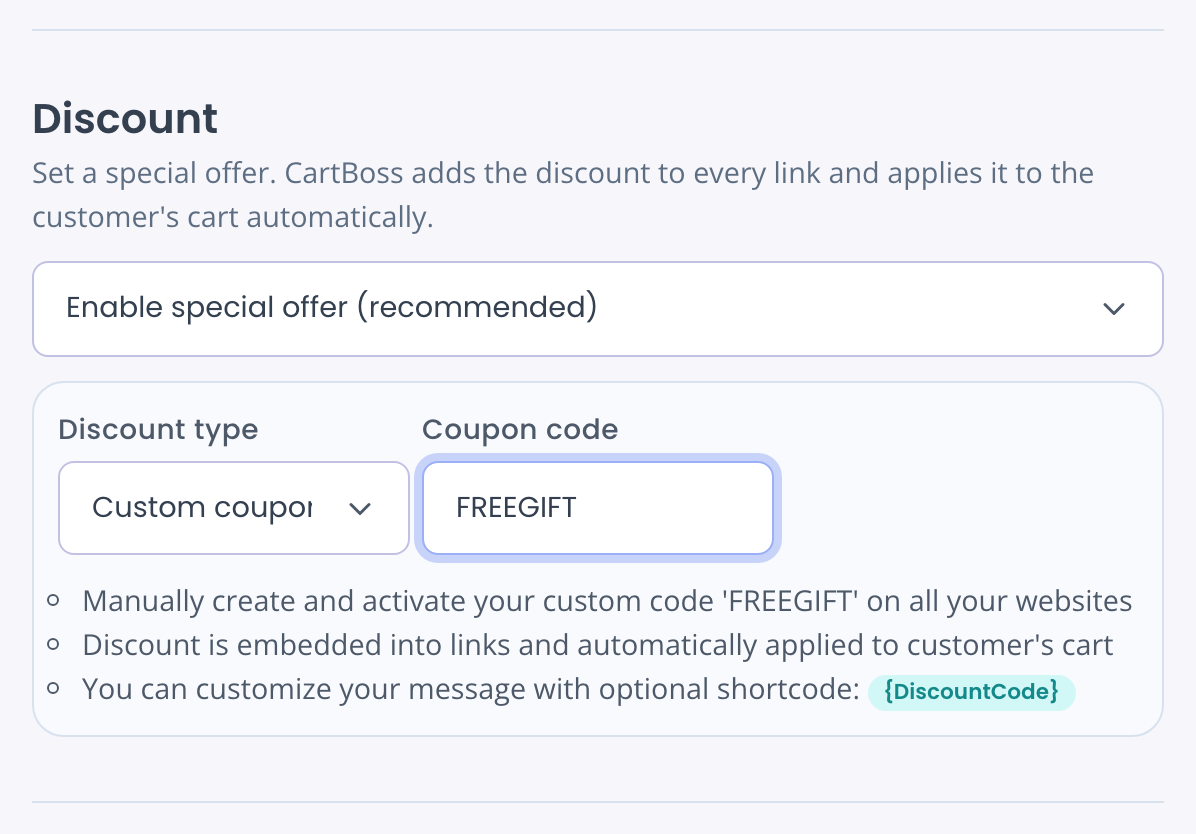
The hint under the field reminds you to create and activate the code on all your websites.
What the shopper gets
- The code travels on every link in the text. When the shopper opens the link, the code is applied to their cart. They don't type it.
- To show the code in the text, add {DiscountCode}, for example: "Your free gift is waiting with code {DiscountCode}: {CheckoutUrl}".
- Describe the offer in your own words. {DiscountValue} stays empty for a custom coupon.
More shortcodes: How to personalize CartBoss texts with shortcodes.
Questions
The coupon doesn't work for a shopper. What should I check?
Check in the shopper's store that the code exists, is active, has not expired, and has uses left. The code in CartBoss must match it exactly.
The message sends from several stores. Do I need the coupon in each?
Yes. Or limit the message to the stores that have it with Website targeting. See How to send different texts for each store.
I get the error "Code is required".
The Coupon code field is empty. Type your code.
Do translations need the link too?
Yes. The code travels only on links in the text the shopper gets, so put {CheckoutUrl} (or {SiteUrl} in a Win-Back text) in every translation.