
How to add the SMS consent checkbox to your Shopify checkout
To collect Shopify SMS consent, turn on SMS in the Marketing opt-in section of Settings → Checkout, so shoppers can tick a box to get your texts. In CartBoss, you then choose whether a store texts every shopper or only those who opted in.
Before you begin
- Install the CartBoss app in your Shopify store (see How to connect your Shopify store to CartBoss).
- Shopify asks you to set up a terms of service and a privacy policy on the Policies page of your Shopify admin before you collect phone numbers for marketing.
Add the SMS opt-in checkbox to your Shopify checkout
- In your Shopify admin, click Settings, then Checkout.
- Scroll to the Marketing opt-in section.
- In the SMS section, select Checkout only from the drop-down menu.
- Click Save.
Your checkout now shows an SMS sign-up checkbox. Shopify never shows it already ticked: the shopper has to tick it.
To make sure every shopper also gives a phone number, see How to ask for a phone number at Shopify checkout so CartBoss can text abandoned carts.
Change the text next to the checkbox
Shopify's default text says the shopper signs up for news and offers. Shopify advises you to change it if your store sends abandoned cart reminders. You can edit it in two places.
From your checkout settings:
- In Settings → Checkout, in the Marketing opt-in section, click Customize labels.
- Edit the Checkout marketing text.
- Click Save.
From your theme:
- In your Shopify admin, go to Online Store, then Themes.
- Click the … button beside your theme and select Edit default theme content.
- Open the Checkout & system category (if you don't see it, click … to show more categories), or type SMS in the Filter items search bar.
- Under Checkout marketing, edit the text.
- Click Save.
Text only shoppers who opted in
By default, a CartBoss store texts every shopper who leaves a phone number. To text only shoppers who opted in, change the store's consent setting:
- In CartBoss, click Sites in the left menu.
- Click the pencil button (Edit website) next to your Shopify store.
- On the General tab, under Abandoned cart consent, choose Only visitors with explicit consent on your website.
- Click Save at the top.
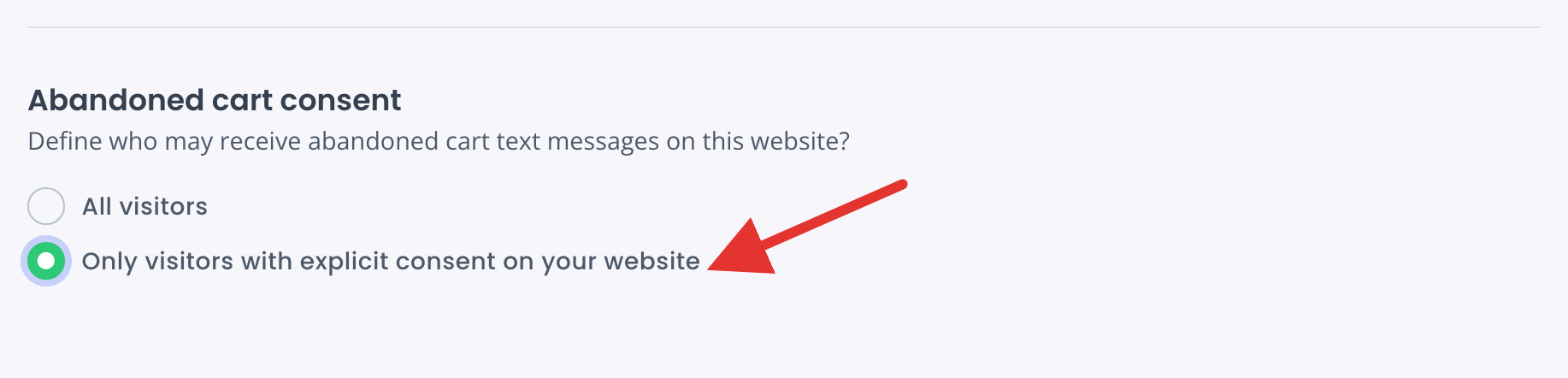
The other choice, All visitors, texts every shopper with a phone number, ticked or not. CartBoss notes that it recovers more carts. Which one you may use depends on the rules where you and your shoppers are. For the full picture, see How to text only shoppers who gave SMS consent in CartBoss.
How CartBoss reads the checkbox
- CartBoss counts a shopper as opted in when they tick the SMS checkbox or the email marketing checkbox at your Shopify checkout, or when their Shopify customer profile already accepts marketing.
- When a shopper types a number in the SMS sign-up field, CartBoss texts that number first.
- Consent is shared by all stores in your CartBoss organization. A shopper who opted in, bought from you, or left a cart on one of your stores set to All visitors can get abandoned cart texts on your other stores too, even without ticking again.
Questions
A shopper ticked only the email box. Will they get texts?
Yes. CartBoss treats the email marketing tick as consent too. Keep this in mind when you write the text next to each checkbox.
Does a WhatsApp opt-in count?
No. CartBoss reads the SMS and email marketing ticks only. If Shopify shows WhatsApp instead of SMS in some regions (Show WhatsApp instead of SMS checkbox based on region), shoppers there who tick only WhatsApp are not counted as opted in.
A shopper unsubscribed. Will ticking the box again bring them back?
Yes. An unsubscribe is not permanent. A new tick at checkout, a purchase, or a new cart on a store set to All visitors subscribes them again. To unsubscribe a number yourself, see How to unsubscribe a phone number (SMS opt-out) in CartBoss.
Can I pre-tick the SMS box?
No. Shopify doesn't allow a pre-ticked SMS checkbox at checkout.