
How to manage several stores, organizations and users in CartBoss
Manage several stores in CartBoss with organizations: each one groups stores that share a balance, and you invite users to it as Manager or Editor. One CartBoss login can belong to several organizations and switch between them.
How CartBoss is organized
- Site: one store, Shopify or WooCommerce.
- Organization: a group of sites with one shared balance, one billing profile, one set of invoices and one daily spend limit. Your users and your Brand Kit also belong to an organization.
- User: a person who logs in (see How to log in to CartBoss with an email code). One user can belong to several organizations and switch between them.
Which to choose? Put all stores of one company in one organization: you pay from one balance and see everything in one place. Create a separate organization when a store needs its own invoices or its own team, for example a client's store you manage as an agency.
Add a WooCommerce store to your organization
- Check that you are in the right organization: its name is at the bottom of the left menu.
- Click Sites in the left menu.
- Type your store's address, for example www.yourstore.com, and click Add site.
- CartBoss opens the new site's settings. Click Install CartBoss.
- Under Install with WooCommerce, click Get Wordpress Plugin and install the plugin in your WordPress admin.
- Click Copy API key. This key links the plugin to this site in CartBoss.
- In WordPress, click CartBoss in the left menu, paste the key into Paste your API key and click Connect.

Full steps: How to connect your WooCommerce store to CartBoss.
Add a Shopify store
A Shopify store joins CartBoss through the CartBoss app in the Shopify App Store. CartBoss uses your Shopify store's email address to decide where the store goes:
- Same email as your CartBoss login: if one of your organizations already has this store on its Sites page, the store joins that organization. Otherwise it is added to your first organization.
- A different email: CartBoss creates a new login and a new organization for that store, with its own balance.
Want the store in a particular organization? Before you install the app, switch to that organization, open Sites and add the store with its Shopify address, for example yourstore.myshopify.com. When you then install the app, the store connects to that site. With or without https://, www or a slash at the end makes no difference. This works when your Shopify store email is your CartBoss login.
A few minutes after the install, the organization owner gets a welcome email that names the organization the store joined.
To manage a store that went to a new login with your usual login, open CartBoss through the Shopify app, go to Users and invite your usual email as a Manager (see below). After you accept, both organizations show up under your login.
See also: How to connect your Shopify store to CartBoss.
Create a new organization
- Click your organization name at the bottom of the left menu.
- Click + next to Organization.
- Enter the Company or Organization name and the Country, then click Create organization.
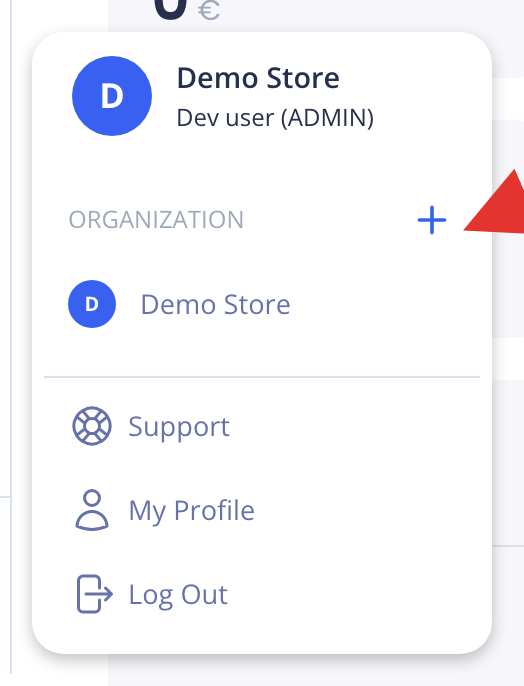
To switch, open the same menu and click the organization you want. You can create a new organization as long as you belong to fewer than 5. Need more, for example as an agency? Email us at support@cartboss.io.
Invite a user
- Click Users in the left menu, under Organization.
- Click Add new member.
- Enter the Email address and pick a Role:
- Manager (Full access): can do everything, including billing. For a business partner or yourself with a second email.
- Editor (No access to billing/org profile): can edit messages and sites, but can't see payments or company details. For a marketer or developer.
- Click Send invitation email.
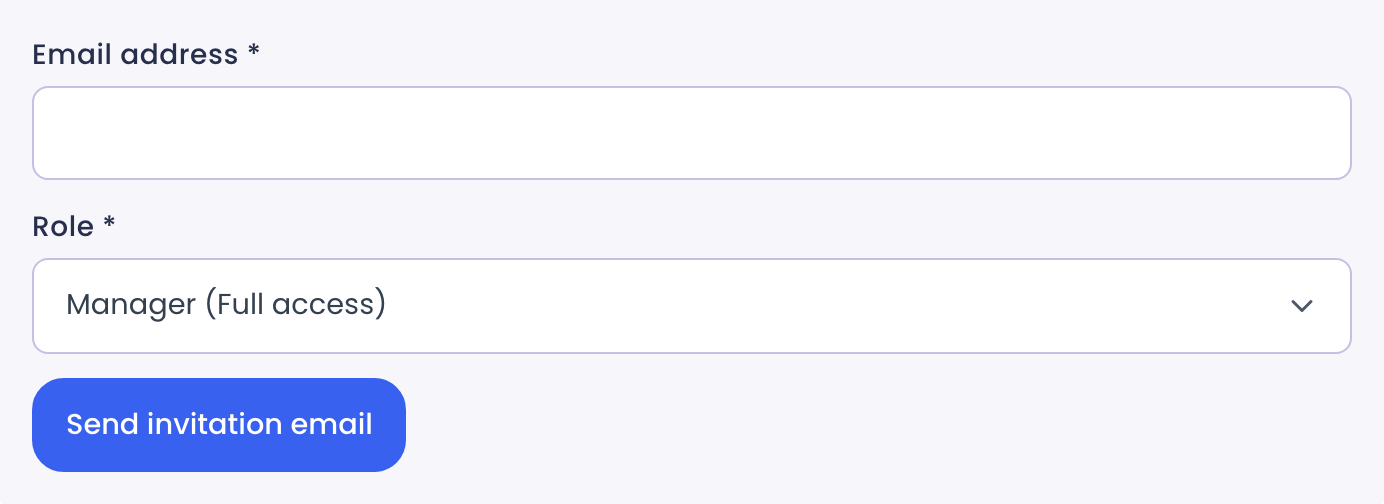
The invitation link works for 7 days. The person must log in with the email you invited. If the link expired, click Resend next to the invitation under Pending invitations.
Questions
My store landed in the wrong organization.
You can't move a store between organizations yourself. Email us at support@cartboss.io with the store address and the organization it should be in, and we'll move it.
My second Shopify store can't be installed.
Email us at support@cartboss.io with both store addresses. We'll check which login each store belongs to.
Do stores in one organization share a balance?
Yes, and the daily spend limit too. A brand from Brand Kit can be used by any store in the organization. Each store keeps its own messages and settings.
Who owns the organization?
The person who created it. Ask us if the owner needs to change.