
How to read your CartBoss dashboard: revenue, ROI and recovery rate
Your CartBoss Dashboard shows revenue from orders placed after a text, ROI, the cost of your texts and the recovery rate, so you see if CartBoss pays off. Use it to compare one week or month with the next.
Open your numbers
- In your CartBoss dashboard, click Dashboard in the left menu, under Analytics.
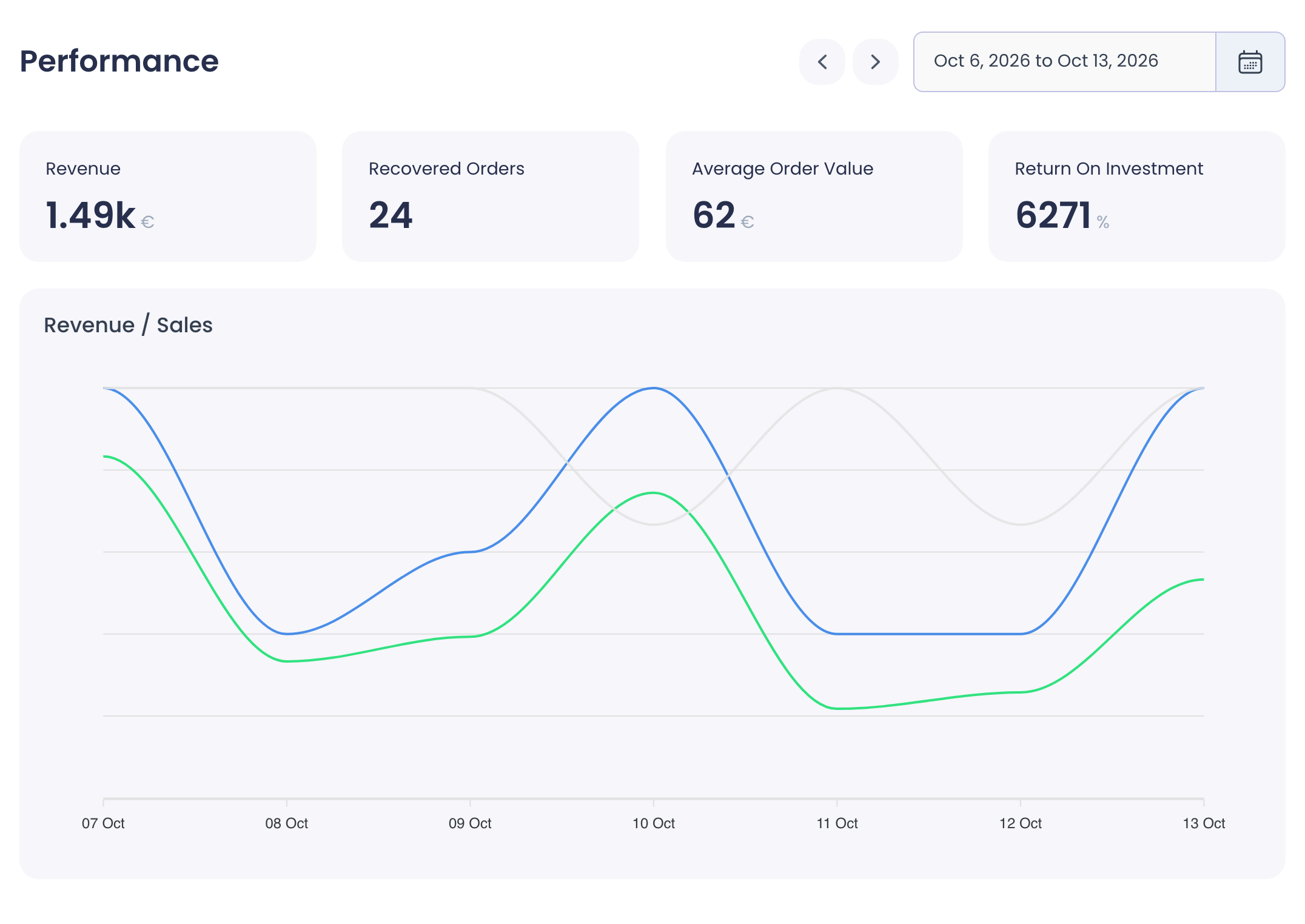
- Scroll to Performance. It shows the last 7 days.
- To see another period, click the dates and pick a start and end day. The arrows next to them move one period back or forward.
What each number means
- Revenue: the total value of recovered orders in this period.
- Recovered Orders: orders placed on the same store within 24 hours after CartBoss sent that customer a text. The customer doesn't need to click the link.
- Average Order Value: Revenue divided by Recovered Orders.
- Return On Investment: (Revenue − Cost) ÷ Cost, in percent. For example, 100€ revenue from 10€ of texts is (100 − 10) ÷ 10 = 900%. It never shows below 0%.
- Cost: what the texts in this period cost you.
- Sent Messages: texts sent to your customers. A long text counts once, even when it is split into several parts.
- Clicked Links: texts whose link was clicked. A text counts once, however often its link is opened.
- CTR / Recovery Rate: the first number is Clicked Links ÷ Sent Messages. The second is Recovered Orders ÷ Sent Messages: the share of sent texts that led to a recovered order.
The Revenue / Sales chart shows the same numbers day by day, so you can spot a good or a quiet day. Hover over a day to see its values.
See the recovery rate for one store
- Click Sites in the left menu, under Websites.
- Click the Analytics button next to the store.
The store's page shows the same numbers for that store only, including Click-Through Rate and Abandoned Recovery Rate. Abandoned Recovery Rate is the store's Recovered Orders ÷ Sent Messages, in percent.
Use the numbers
- Low Clicked Links? Try a different text or a discount. See How to write your own abandoned cart text in CartBoss.
- Cost going up but no extra orders? That can be fake traffic. See How to protect your store from SMS pumping (fake SMS traffic).
- Want numbers per store? The Sites page shows Revenue, Orders, Spent and ROI for each store, counted over all time. For a date range, open the store's Analytics page (see above).
Questions
Why don't my numbers match my shop's sales report?
CartBoss counts only orders placed on the same store within 24 hours after one of its texts. Your shop counts every order.
Why is a number 0?
No texts were sent in that period, or your store isn't connected. Check the Sites page (see How to fix a store that shows Not tracking in CartBoss). For one missing text, see How to find out why a shopper didn't get a CartBoss text.
I have more than one organization.
The dashboard shows the organization you are in. Switch organizations at the bottom of the left menu.