
How to update the CartBoss plugin in WordPress
To update the CartBoss plugin, go to Plugins in WordPress, click update now under SMS Abandoned Cart Recovery - CartBoss, then clear page and CDN caches. The plugin and its updates are free.
Before you begin
- Log in to WordPress as an administrator.
- The current plugin needs WordPress 6.0 or newer, WooCommerce 8.0 or newer and PHP 7.4 or newer. Your hosting company can tell you the PHP version.
- WordPress recommends a fresh backup of your site before you update plugins.
Check if your plugin is out of date
- In CartBoss, click Sites in the left menu.
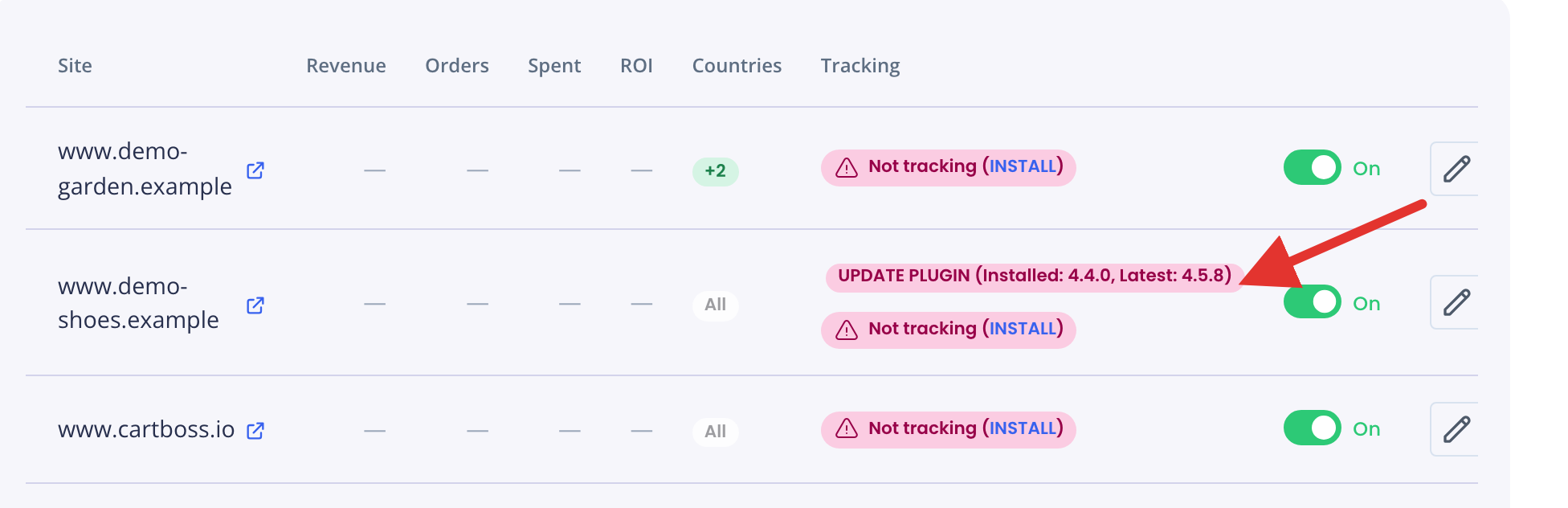
- Look at the Tracking column. A WooCommerce store with an old plugin shows a red UPDATE PLUGIN (Installed: x, Latest: y) badge, with the version you have and the newest one.
In WordPress, the CartBoss page (left menu) shows your version in the Plugin card, for example CartBoss v4.5.8.
Update the CartBoss plugin
- In your WordPress admin, click Plugins in the left menu.
- Find SMS Abandoned Cart Recovery - CartBoss. When an update is ready, it has a note "There is a new version…".
- Click update now in that note.
- Wait until WordPress says the plugin is updated.
Updating several plugins at once? Select them, choose Update from Bulk actions and click Apply.
Your settings, your API key and the stored carts stay as they are. You don't need to connect again.
Clear your page and CDN caches
Do this right after the update if your site uses a caching plugin, your host's cache or a service like Cloudflare.
- Clear (purge) the page cache in your caching plugin or hosting panel.
- Purge the CDN cache, if you use one.
Why: pages cached before the update keep the old checkout script. CartBoss refuses carts from those old pages until the cache is cleared. Nothing breaks, and capture starts again on the next fresh page load. The plugin also tells cache plugins not to store your checkout pages from now on.
Turn on automatic updates
- In WordPress, click Plugins.
- In the Automatic Updates column, click Enable auto-updates next to SMS Abandoned Cart Recovery - CartBoss.
Automatic updates don't clear your caches. When the plugin has updated itself, clear them as above.
Why keep the plugin up to date?
Updates fix problems and keep the plugin working with new WordPress and WooCommerce versions. Some also protect your balance. From version 4.5.1, each shopper's session can save carts for at most three different phone numbers per hour. That stops a script from typing in one made-up number after another and running up your SMS bill. Real shoppers are not affected, and there is nothing to set up. See How to protect your store from SMS pumping (fake SMS traffic).
What happens next
- The UPDATE PLUGIN badge in CartBoss goes away after your store sends CartBoss its next cart or order.
- The badge shows for WooCommerce stores only. Shopify stores have no plugin to update.
Questions
The badge still shows after I updated. What now?
CartBoss learns the new version from the next cart or order your store sends. Wait for one, or place a test order yourself while signed out of WordPress. If the badge stays, email support@cartboss.io.
Do I need to click Save changes in the plugin after updating?
No. The update keeps your settings.
The update failed or my site shows an error.
Try the update again from Plugins. If it still fails, email support@cartboss.io with your store address and the error you see.